
Connect
Connect is a functional Fénix module and is the starting point for any user of Instituto Superior Técnico, including students, employees, invited persons/external guests, or anyone who currently has or will have an affiliation with IST, such as potential applicants.
Through Connect, users can create an account that provides access to various Técnico portals and services.
To make access easier, this short link ist.pt/connect is available.
User Manual (version updated as of 22/07/2026)
Getting Started
1. Access & authentication
The new access page to Connect
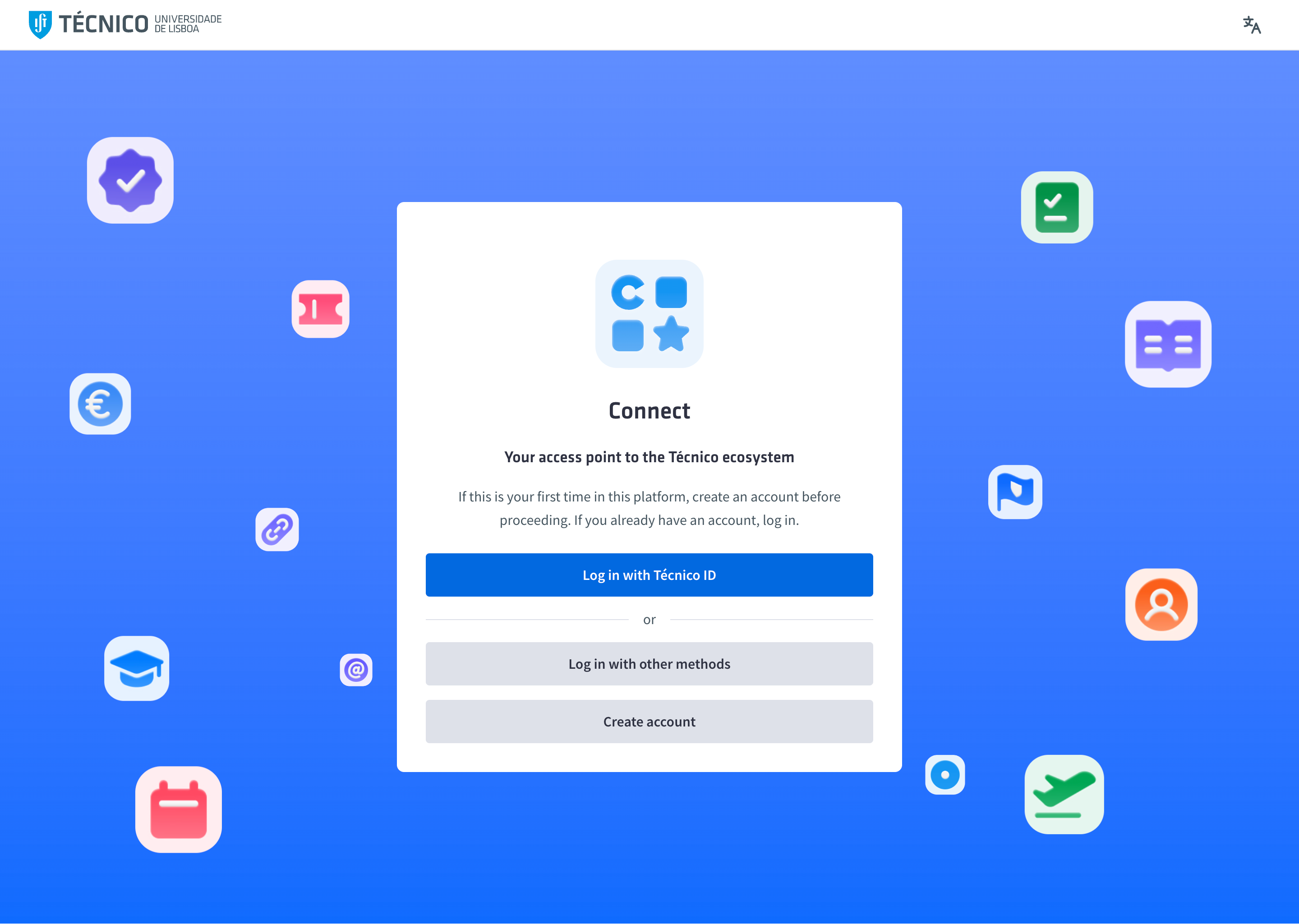
Connect can be accessed via Fénix, directly through the link or through the institutional website. Accessing Connect via the institutional website will be different: the ‘Apps’ drop-down list will now be a page with the corresponding shortcuts to the various applications.
On the apps page, click on the logo on the upper left corner to return to the Técnico website.
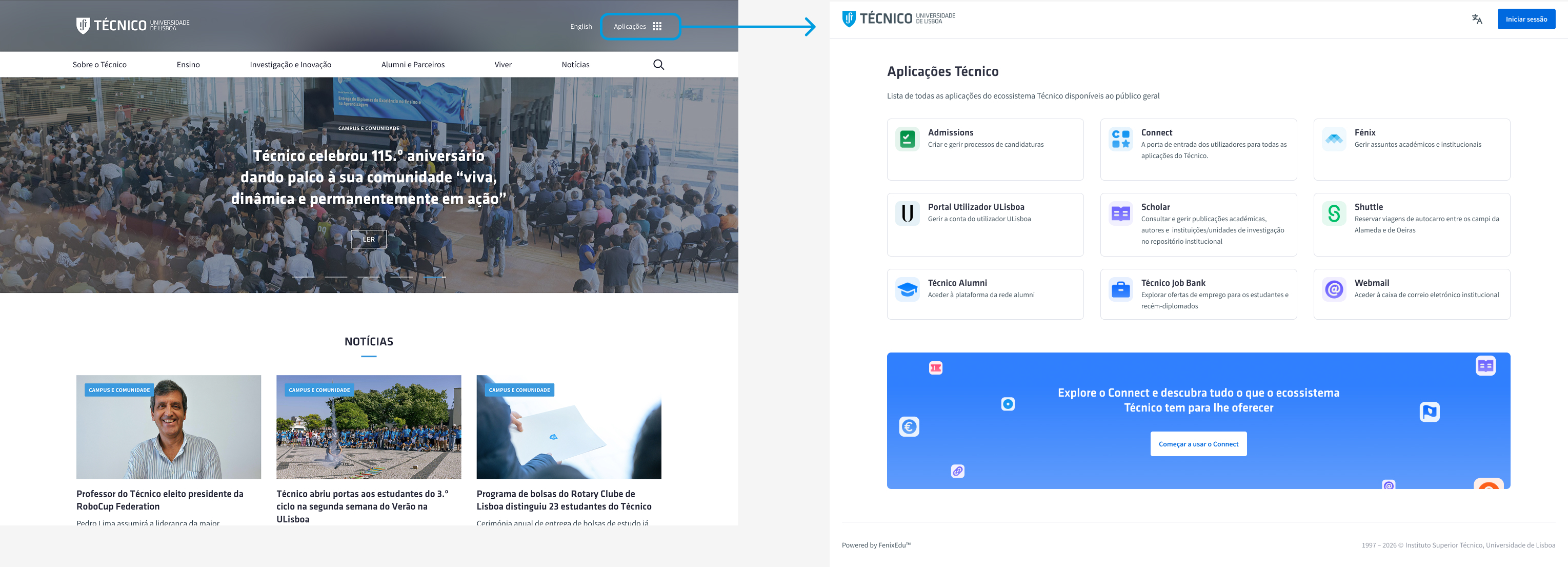
Considering the significant changes to the interface and to the way that the platform is accessed, please ensure that you are accessing the correct page, in order to protect your digital security.
For more information on the available authentication methods and the account creation process, please see our page on how to create an account on Connect.
Key Features
1. Applications
All applications across the Técnico ecosystem to which access has been granted will be available on the home page.
2. Activities
Activities are actions that must be taken by the user in one of the ecosystem’s applications. They generally result from pending matters between the user and the system, such as the need to update documentation related to an open process, to change personal information, or to review processes, among others.
The latest version of the app features a sidebar that will bring together all of the user’s pending activities in one place. This integration will happen gradually, and for now, it will still be necessary to visit individual apps to view pending actions.
Activities feature a simple priority categorisation system: mandatory activities are marked with a label, allowing quick identification of what requires immediate attention.
3. Switching between Environments
Many Técnico employees also hold professional roles at the Associação do Instituto Superior Técnico para a Investigação e Desenvolvimento (IST-ID). To simplify the day-to-day experience of these professionals, a simple navigation mechanism has been implemented between Técnico and IST-ID access.
This mechanism will be implemented progressively across various applications, and for now is restricted to a set of applications within the Connect universe.
To do so, simply go to the User Menu, in the upper right corner of the page, where there are buttons with the logos corresponding to each institution. To switch the institution through which the application is being accessed, simply click on the corresponding logo.
4. Returning to Connect
Técnico employees often use several applications simultaneously in their day-to-day work. Since Connect is the central point that brings together access to various applications*, a button has been implemented that provides direct access to the platform from other applications in the ecosystem.
To return to Connect at any time while in a Técnico application**, simply go to the User Menu, in the upper right corner of the page, and click on the “Connect” button. This automatically redirects to the Connect home page.
* Access to each application is determined by the functions performed in the system, so not all applications will be available to all users. For example, a teacher and a student have access to different sets of applications.
** Applications provided by the institution but developed by third parties do not have the functionality to return to Connect or to navigate between Técnico / IST-ID environments.
FAQs
- I’m looking for a process but can’t find it on Connect. What can I do? Processes and forms are built and managed through the Smarties application, and are not directly available on Connect. For more information on the functionalities of each application, please see the list of applications in the “Applications” section.
Need any further help?
If you still have questions, you can contact our support services by email.