
Autodesk Student Installation Guide
Software Download and Installation
1. After registering and accessing the Autodesk University Portal you can download the installer according to the version you want.
Note: You can follow the video instructions, if you prefer (9:50).
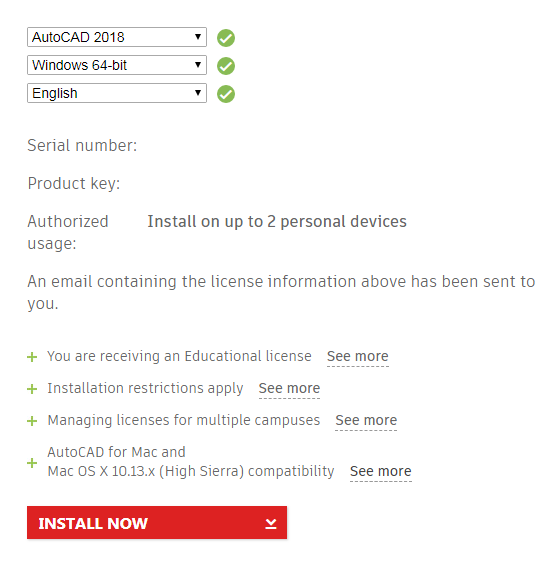
2. Click the “INSTALL NOW” option.
When the file finishes downloading, start the installation by double clicking on the executable file with your left mouse button.
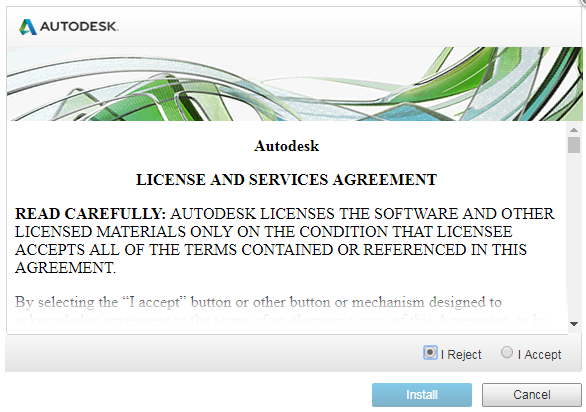
3. Confirm the licence terms and choose the “I Accept” option.
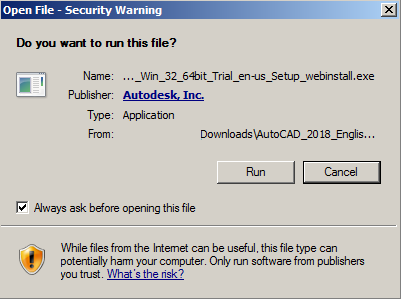
4. In the security warning, you must choose the “Run” option.
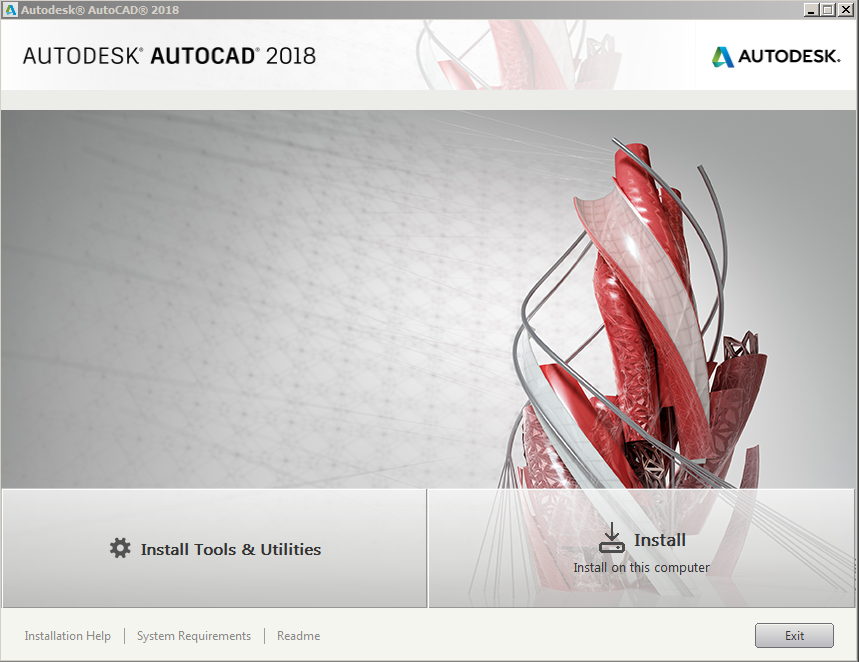
5. In the installation menu, you must choose “Install”.
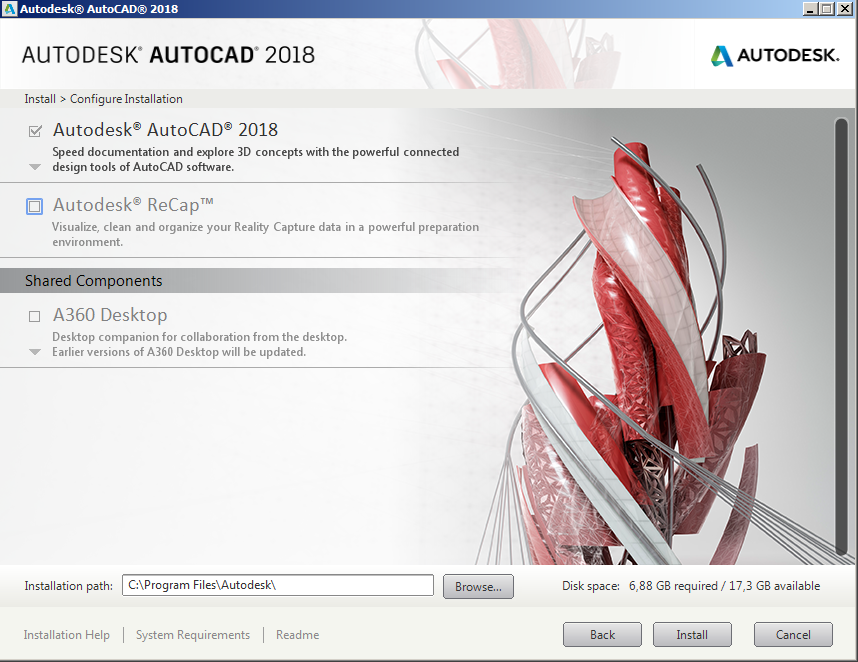
6. You must confirm:
- only the installation components you really need (by expanding the automatically selected item)
- the installation folder and choose the “Install” option.
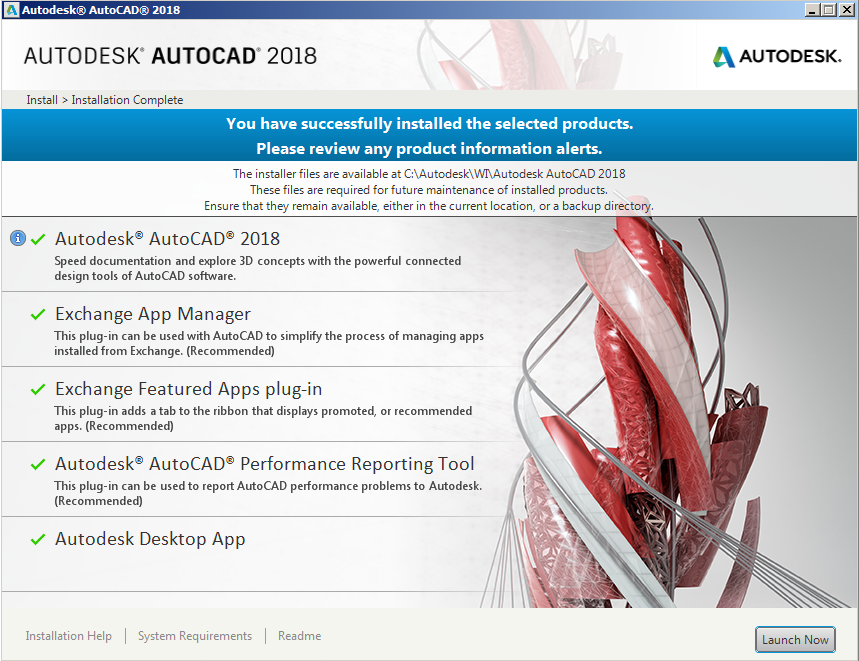
The Exchange components are usually not necessary.
7. Installation is complete. You can click “Launch Now” to launch the programme.